




Webflow’s Localization feature has become one of the platform’s most significant additions in recent years. It gives designers and businesses the ability to create multilingual, culturally adapted versions of their websites directly inside Webflow without relying on external translation plugins or complex integrations. In a global digital environment where users expect content in their own language, this capability is no longer optional; it’s a competitive necessity.
Webflow introduced native Localization in 2023. The feature gives you a way to build and manage multilingual versions of your site directly inside the platform. It lets you create separate language or region‑specific versions of every page and CMS item, while still keeping everything connected to a single project.
How is the Localization feature priced?
Webflow prices Localization as a paid add‑on, and the cost scales based on how many locales you add to a site. The pricing is per locale, not per project, which means every additional language or region version increases the monthly cost.
As of the beginning of 2026 localization has two tiers:
Essential — $9 per locale/month
This is the entry‑level tier and supports up to three locales. It includes machine-powered translation, localization for CMS content and static pages, localized meta titles and descriptions, style localization.
Advanced — $29 per locale/month
This tier supports up to ten locales and adds more advanced features such as asset localization, localized URLs and automatic domain-level routing.
Enterprise — custom pricing
The Enterprise tier offers several features that make the entire localization experience significantly smoother. These include per‑locale element visibility, the ability to draft locale‑specific static pages, branch staging, and a custom glossary that locks specific terms (such as product names, brand phrases, or technical terminology) to predefined translations.
Enterprise plans are priced individually based on your business needs and scale. For more details on how Enterprise pricing works, see our What Do Webflow Enterprise Clients Get? article.
This analysis will be based on the Essential tier.
Obviously good stuff
Even the most basic level of localization pays off, because offering content in more than one language instantly makes a website more accessible, more trustworthy, and more relevant to a wider audience.
Style localization
Style localization is the part of Webflow’s system that lets each language version of your site look and feel native, not just read native. It goes beyond translating text and gives you control over how design elements behave in different locales.
In practice, it means you can adjust things like spacing, alignment, typography choices, and layout variations for each language without breaking the global structure of the site. This matters because languages expand and contract differently — German tends to be longer, French often needs more breathing room, and Japanese or Arabic may require different typographic considerations. Style localization lets you finetune these differences so every version feels intentional rather than squeezed into a one‑size‑fits‑all layout.
It’s especially important for right‑to‑left languages, where the entire visual flow shifts. With style localization, you can adapt direction, positioning, and visual hierarchy so the design feels natural to users in those markets.
In short, style localization is what keeps a multilingual site from looking like a translated overlay. It ensures each locale has the visual polish and cultural fit that users instinctively trust.
Practical example
In the screenshot below you can see how the style of the heading of the 3rd level was adjusted specifically for the French locale. Text size, line height and text color was changed, hence they are blue in the Style panel. Any stylistic changes made on the French locale don’t affect the primary locale or the other locale (3rd locale).
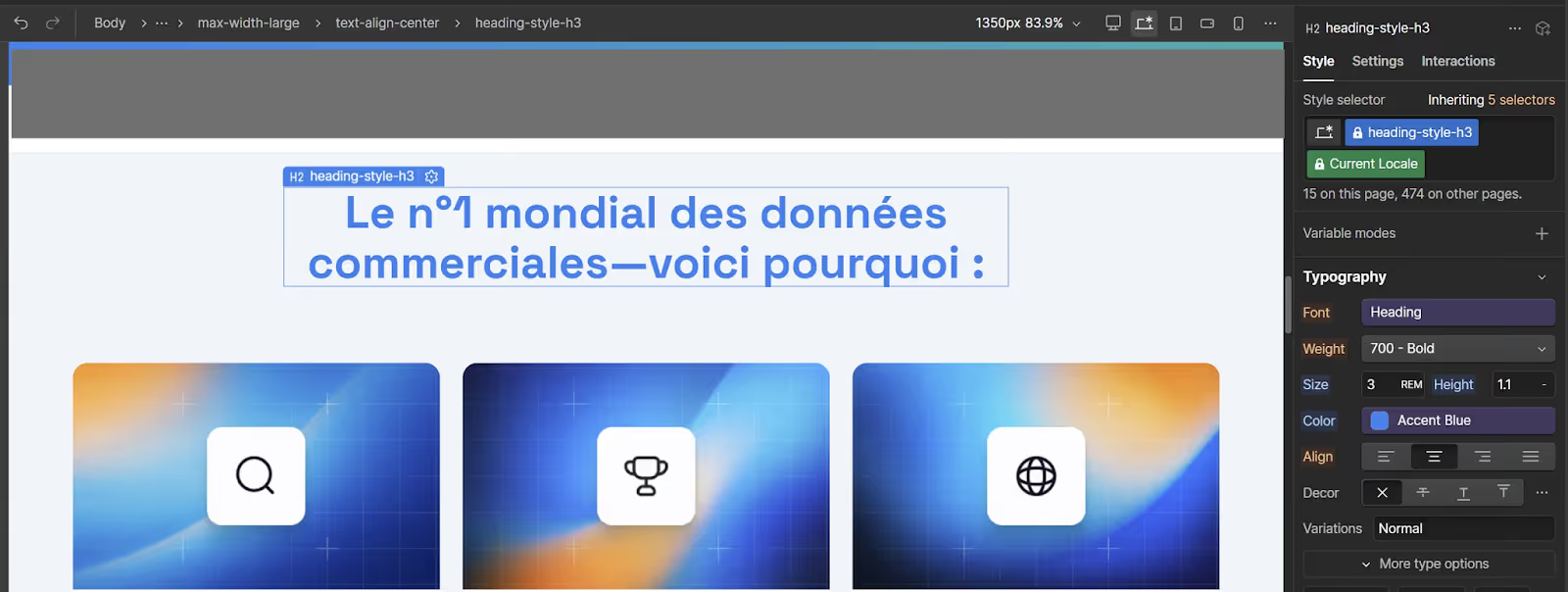
Note that display: none is also a style directive, and by creating combo classes in the primary locale you can hide specific elements in secondary locales. For example, adding a combo class like fr-hide to heading-style-h3 and setting it to display: none in the French locale will successfully hide that element.
However, this approach isn’t recommended. It doesn’t scale, it quickly creates class clutter, and it becomes unmanageable once you have multiple secondary locales or rely on this method too often.
Webflow’s Enterprise tier includes a built‑in ability to hide elements per locale with a single click — a far more sustainable and maintainable solution.
One-click high quality translation with human override option
Webflow’s one‑click translation feels like the kind of feature that instantly changes your workflow the moment you try it. Instead of juggling external tools, copying text back and forth, or worrying about breaking layouts, you trigger a single action and the entire page is translated in seconds. It’s fast, surprisingly accurate for a machine translation layer, and deeply integrated into the Designer, which means you stay in the same environment while the heavy lifting happens behind the scenes.
What makes it genuinely impressive is not just the speed, but the way it preserves structure, formatting, and context. You don’t end up with scrambled components or mismatched styles — the translated version mirrors the original, giving you a clean starting point for refinement. For teams that need to ship multilingual content quickly, or for creators who want to test new markets without a huge upfront investment, this feature removes a massive amount of friction. It’s one of those rare tools that feels both simple and powerful at the same time.
To translate a whole page you just need to select the Body element and click “Translate”.
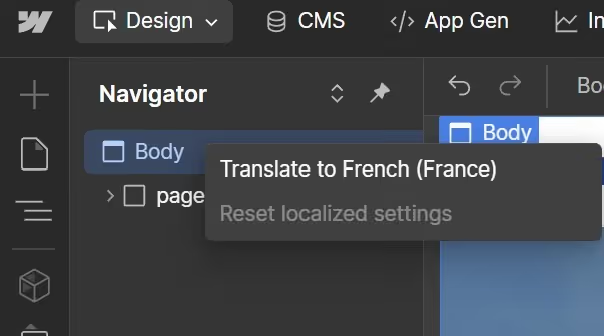
Manual translation on top of machine translation in Webflow works as a clean, two‑step process: the system generates a quick first draft for the entire page, and then you refine it directly in the Designer. You can adjust headlines, microcopy, SEO fields, and anything else that needs a human touch, all without leaving the Webflow environment.
The strength of this approach is the balance it strikes. Machine translation gives you speed, especially for large sites, while manual editing ensures the final result feels natural, on‑brand, and culturally accurate. It’s efficient where it can be and precise where it matters — exactly what you want when building a multilingual website that still feels intentional and trustworthy.
Localized metadata
Title tags and meta descriptions, open graph image and title can be translated on both static and dynamic pages, but there’s a small catch. You have to open the page settings and manually click the globe icons to trigger the translation. It doesn’t happen automatically when you translate the page or create a new locale, so it’s easy to overlook if you’re not paying attention.
Ability to create independent CMS items
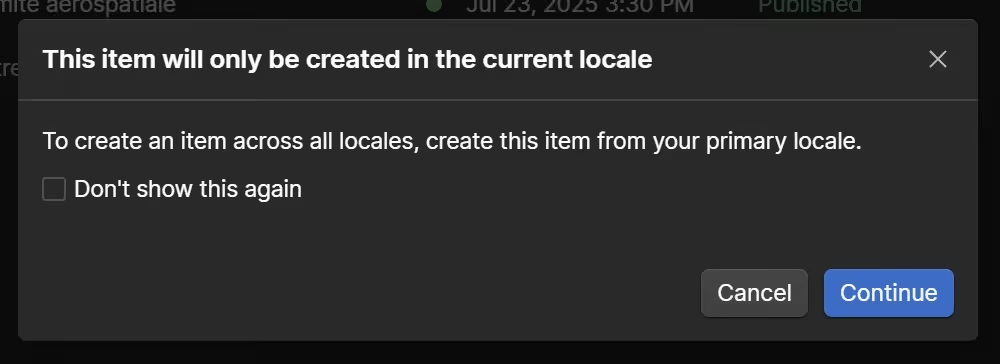
The ability to create CMS items directly within specific locales is a powerful feature and it’s available even to Essential‑tier users. It allows you to publish content tailored to particular audiences or markets, without affecting the primary locale’s CMS structure.
10 Pitfalls That Slow You Down and Pile On Extra Work
#1: There is no “Translate my website” button
Once you add a new locale, you have to open every single static page and translate it manually. The same applies to all CMS items — you need to open each one and click “Translate all fields.” Now imagine doing that for 100 static pages and 5,000 dynamic pages.
What I still don’t understand is why Collections can’t be translated in bulk. At the very least, that would make the process slightly more manageable. It would also make sense if we could exclude certain pages from specific locales, but that’s not possible either. Even an untranslated page still gets a URL inside the locale directory and becomes potentially discoverable unless you explicitly block it with robots rules.
If you need to reset translations for a whole Collection or a whole locale, you must do it item by item. Users managing hundreds of items find this extremely time‑consuming.
#2: No image localization on Essential Tier
It’s only natural to want images to be localized. There are plenty of situations where this matters: your image might contain text that needs to be readable in another language, you may want visuals that reflect local geography or people, or you might use different color palettes for different markets and need the imagery to match those accents. But in Webflow, image localization simply isn’t available for Essential‑tier users. You can’t swap visuals per locale or upload language‑specific versions. For now, the only thing you’re allowed to translate is the alt text — which is helpful for accessibility and SEO, but doesn’t solve the core problem of adapting the actual image to the audience.
I’m okay with the fact that localized URLs and automatic visitor routing are part of the Advanced tier. Those features genuinely add value, and larger businesses may need them while smaller ones can stay on Essentials and still have a pretty localized website. But localized images feel fundamental and should be treated the same way as localized text. Something this basic shouldn’t cost an extra $20 per locale.
#3: Inheritance rules
Inheritance rules are powerful and they are enforced to bring order and establish the logic in the build. But at the same time they are real troublemakers. The moment you forget about how they work you end up with an outdated text in the secondary locales.
How do inheritance rules work?
You have a heading in the primary locale, which you successfully localized. But then you update the heading in the Primary locale - this happens all the time, right - the heading on the second locale will not update automatically. You need to switch to the second locale, reset previous translation and translate the heading again.
The logic is simple: if you made a custom change on the second locale language you might not want it to be changed every time you make a change on the primary locale. In practice you need to constantly remember that the second locale needs to be manually updated if you want changes all over the website.
Now imagine you’re working with four languages on your site. That means a single heading change in the primary locale suddenly becomes four separate tasks: you have to switch into each locale one by one, reset the translation, and then re‑translate the field manually. A tiny update quickly turns into a tedious, multi‑step chore — and it adds up fast as your site grows.
The same rules apply to Collection pages. The “Publish to all locales” popup only adds to the confusion, because it makes it seem like changes made in the primary locale’s Collection item will automatically carry over to the secondary locale. They won’t. You still have to manually update the translated fields — or reset their translation and re‑translate them — for the changes to appear in other locales.
#4: Some unobvious copy‑paste and duplication rules
If you duplicate a page that’s already localized, Webflow duplicates the localized version too — including all the custom fields you’ve adjusted for that locale. So far, so good.
But the moment you start copy‑pasting, the logic changes. If you copy a section from a localized page and paste it elsewhere, that content won’t carry over its localized version. You have to switch to the target locale and translate it again manually, even if the section is a component.
It’s one of those small, unintuitive rules that can easily break your flow if you’re not aware of it.
#5: Dynamic dates won’t be translated
If you’re pulling a date from a Collection, there’s currently no way to localize it for secondary locales. Webflow simply doesn’t offer an option to translate or reformat dynamic dates, and even applying translation at the Body tag level won’t touch them.
My best guess is that this limitation comes from the complexity of date formats — different languages and regions use different structures, separators, and conventions, and Webflow doesn’t attempt to handle that automatically. Whatever the reason, the result is the same: dynamic dates stay locked in their original format, which can feel jarring on an otherwise localized page.
#6: Localization of text inside code embed elements
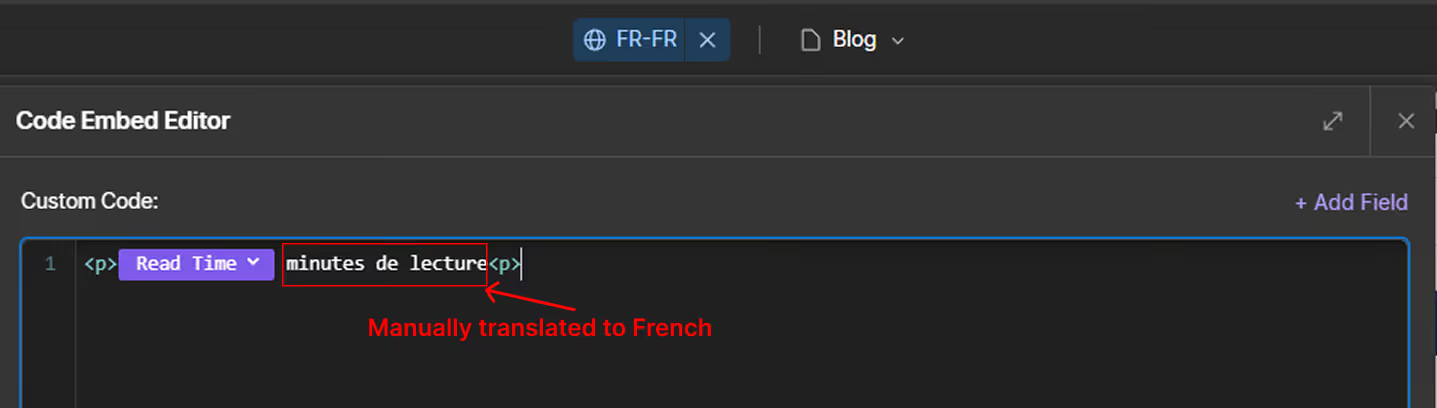
If you have text inside a code embed element, keep in mind that it won’t be translated automatically when you switch to a secondary locale. The good news is that you can manually edit the content of a code embed, and those edits apply only to the active locale. In other words, code embed content is locale‑specific by design.
This opens up a surprising number of workaround opportunities. If there’s something you need to display differently in a secondary locale — a line of text, a label, even an image — you can inject it through a code embed and customize it per language. It’s not the most elegant solution, but it’s flexible and works especially well for swapping visuals or handling edge cases Webflow doesn’t localize natively
#7: Texts wrapped in spans may be messed up or not translated
There are plenty of cases where you need to wrap a word or phrase in a span — maybe for styling, maybe for an ID, maybe for a link. But the moment a span appears inside a sentence, auto‑translation becomes noticeably less reliable.
Machine translation already struggles with differences in grammar and sentence structure across languages. English places adverbs before verbs, while languages like French or Turkish place them after. When a sentence includes spans for styling or links, the translation engine often treats the styled word and the surrounding text as separate fragments. That’s where things fall apart.
Sometimes the machine duplicates words. Sometimes it skips the spanned text entirely. Other times it translates each piece independently, producing awkward or outright nonsensical results.
A simple example: in English, “he quietly spoke” becomes “he spoke quietly” in Turkish. If either “quietly” or “spoke” is wrapped in a span, the machine can’t reorder the sentence properly because it won’t move the span. The result is a broken, unnatural translation.
In short, spans inside sentences introduce structural constraints that machine translation can’t reliably navigate — and the output often shows it.
#8: Option fields in Collections are not translated
If you display the value of an option field as text on your site, expect it to appear only in the primary locale’s language. Webflow doesn’t translate option field values at all, so they remain locked to whatever you entered originally — even if the rest of the page is fully localized.
#9: Avoid links added as a relative path
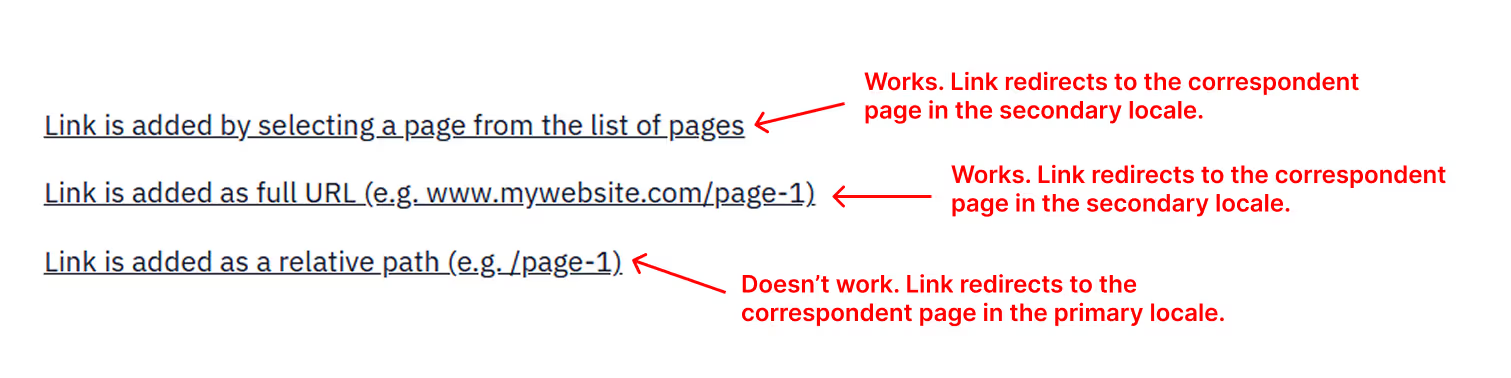
If you add a link by selecting an internal page from Webflow’s page list, everything works as expected — the link automatically redirects to the correct page in the secondary locale. The same is true if you use a full URL.
But relative paths are a different story. If you manually enter something like /how-it-works, the link will still function, but it will always point to the primary locale. Webflow won’t rewrite or redirect it to the translated version, so users in other languages get sent straight back to the main locale.
In short: avoid relative paths if you want your links to respect localization.
#10. The more complex your build is, the harder it becomes to maintain localization
Unfortunately, this one is simply true. The more complex your build gets, the more surface area you create for localization issues. Every extra feature — embedded forms, third‑party widgets, conditional visibility tied to non‑localized fields, or anything that relies heavily on custom code — becomes another point you need to verify across all locales.
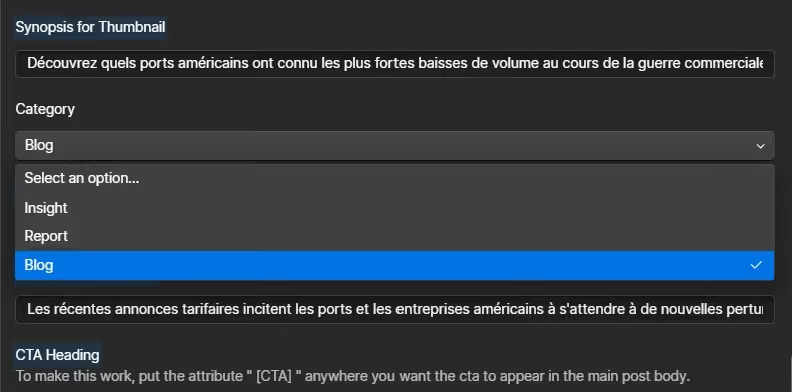
A small example from one of the builds we maintain: we inject CTA blocks into blog posts using custom code. The logic is simple — the script looks for a specific marker inside the blog body (in our case, [CTA]) and replaces it with a prefilled block using values from Collection fields.
Everything worked perfectly in the primary locale. But in the secondary locale, the CTAs disappeared. The culprit? Machine translation had helpfully translated [CTA] into French as [CHAT], which the script didn’t recognize. We had to manually audit every blog post, fix the marker, and then adjust our process to prevent it from happening again.
It was a tiny detail, but it took time to spot, troubleshoot, and correct — and now it’s one more thing we have to keep in mind for ongoing maintenance.
Apps
Some of these pitfalls can be softened — or even avoided — by using external apps and APIs to handle the parts Webflow doesn’t automate well. A solid translation tool or TMS can connect to Webflow through APIs, push and pull content in bulk, keep terminology consistent, and maintain a clean review workflow. Instead of manually opening thousands of pages, you can sync translations programmatically, trigger updates automatically, and structure the entire process around a proper approval pipeline. In other words, while Webflow’s native localization has limits, pairing it with the right apps and API‑driven workflows can turn translation management into something far more automated, scalable, and predictable.
1. Crowdin
What it is:
A localization management platform that connects your Webflow site with Crowdin to manage translations in an automated way.
Why use it:
- Syncs pages and CMS collections from Webflow to Crowdin and back.
- Supports machine translation, manual editing, and collaboration with professional translators.
- Designed for high-quality, scalable localization workflows.
Key features:
- Translation memory and glossaries
- QA checks and validation
- Team collaboration and role management
- Machine + human translation workflows
- Free plans exist for small or open-source projects.
- The Pro plan starts at $59 per month.
2. Phrase
What it is:
A full-featured Translation Management System (TMS) that integrates with Webflow and other CMS platforms, designed primarily for enterprise localization.
Why use it:
- Ideal for companies with complex, large-scale localization needs.
- Strong focus on translation memory, glossaries, quality control, and structured workflows across multiple teams and languages.
Key features:
- Advanced translation workflows
- Terminology management
- Team roles and permissions
- Integrations beyond Webflow (enterprise ecosystem)
- Freelancer plan starts at $20 per month.
- The Team plan starts at $1,045 per month.
3. Lokalise
What it is:
Lokalise is a professional Translation Management System (TMS) that integrates directly with Webflow to manage multilingual content at scale across pages and CMS collections.
Why use it:
- Designed for content-heavy teams that need structured workflows, visibility, and consistency across multiple languages.
- Works well for organizations managing frequent content updates and multiple translators.
Key features:
- Translation memory and glossary management
- Detection of missing, outdated, or inconsistent translations
- Bulk CMS translation and automated content sync
- Collaboration workflows with multiple translators and reviewers
- Support for machine translation, human translation, and proofreading
- Free plans for teams exploring localization, quick trials, and first projects.
- The Explorer plan starts at $144/month.
- The Advanced plant start at $999/month.
4. Localazy
What it is:
Localazy is a localization platform focused on developer-friendly and automation-first translation workflows, with an official integration that allows Webflow content to be synced for translation and pushed back to the site.
Why use it:
- Designed for teams that want fast AI-driven localization with minimal setup.
- Works well for projects where speed and automation matter more than editorial governance.
- Often used in SaaS, product interfaces, and technically driven websites.
Key features:
- Translation memory
- Glossaries / terminology management
- Machine translation with post-editing
- Automated content sync (pull & push)
- Bulk translation support for structured content
- Collaboration tools (basic reviewer workflows)
- Offers a 14-day free trial.
- The Professional plan starts at $34/month.
- Business plan starts at $175/month.
5. SimpleLocalize
What it is:
SimpleLocalize is a localization platform that integrates with Webflow to manage translations through a collaborative editor and automated workflows. It supports translation sync, automation, and basic QA tools.
Why use it:
- Good fit for small to mid-sized teams needing structured translation management without enterprise complexity.
- Focuses on simplicity, collaboration, and automation.
Key features:
- Translation memory basics and AI-assisted auto-translation
- Quality checks and validation tools
- Team roles and permissions for collaborators
- Machine translation support with included auto-translation characters
- CLI and integrations for automation
- Works with Webflow content sync (pages + CMS collections) for translation updates
- Free plan available for small projects.
- The Team plan starts at $35/month, and the Business plan at $99/month.
6. Smartling
What it is:
An enterprise localization platform that integrates with Webflow to manage large-scale translation and localization workflows across websites and digital products.
Why use it:
- Designed for large organizations with strict quality, compliance, and localization standards.
- Handles high-volume, multi-language projects with advanced workflows.
Key features:
- Enterprise-grade translation memory and glossary management
- Machine translation combined with professional human translation and QA
- Advanced workflow automation, reporting, and role-based access
- Strong focus on consistency, quality, and compliance at scale
- Offers a free Core plan for basic translation needs.
- Full localization features (larger workflows, integrations, advanced QA) are available via the Enterprise plan with custom pricing, based on content volume, languages, and services.
7. GlobalLink
What it is:
GlobalLink is an enterprise-grade localization platform by TransPerfect that integrates Webflow with GlobalLink’s Translation Management System (TMS).
Why use it:
- Built for large organizations that require high-volume, high-quality localization with strict workflows.
- Ideal for teams that already work with TransPerfect or need professional translation services tightly integrated with CMS workflows.
Key features:
- Translation memory and terminology management
- Automated content extraction and reintegration from Webflow
- Professional human translation and proofreading
- Enterprise workflows, QA, and reporting
- Enterprise-only pricing.
- Cost is custom and typically bundled with TransPerfect translation services.
8. Lilt
What it is:
Connects Webflow with Lilt, a modern AI-powered translation platform that combines adaptive machine translation with human-in-the-loop review.
Why use it:
- Designed for teams that want faster translation turnaround without sacrificing quality.
- Lilt’s adaptive AI learns from edits in real time, improving consistency across large content sets.
Key features:
- Adaptive AI translation with real-time learning
- Translation memory and terminology support
- Human review and professional translators
- Bulk translation for CMS-driven content
- Enterprise-focused pricing.
- Pricing is custom, typically usage-based (word volume and services).
Webflow Localization Apps — High-Level Comparison